Training matrix by role: see who's missing a certificate
Map the certificates each role needs, then see who's missing one, expiring or booked: the spreadsheet way, where it breaks, and how Cova lists the gaps.
By Cova
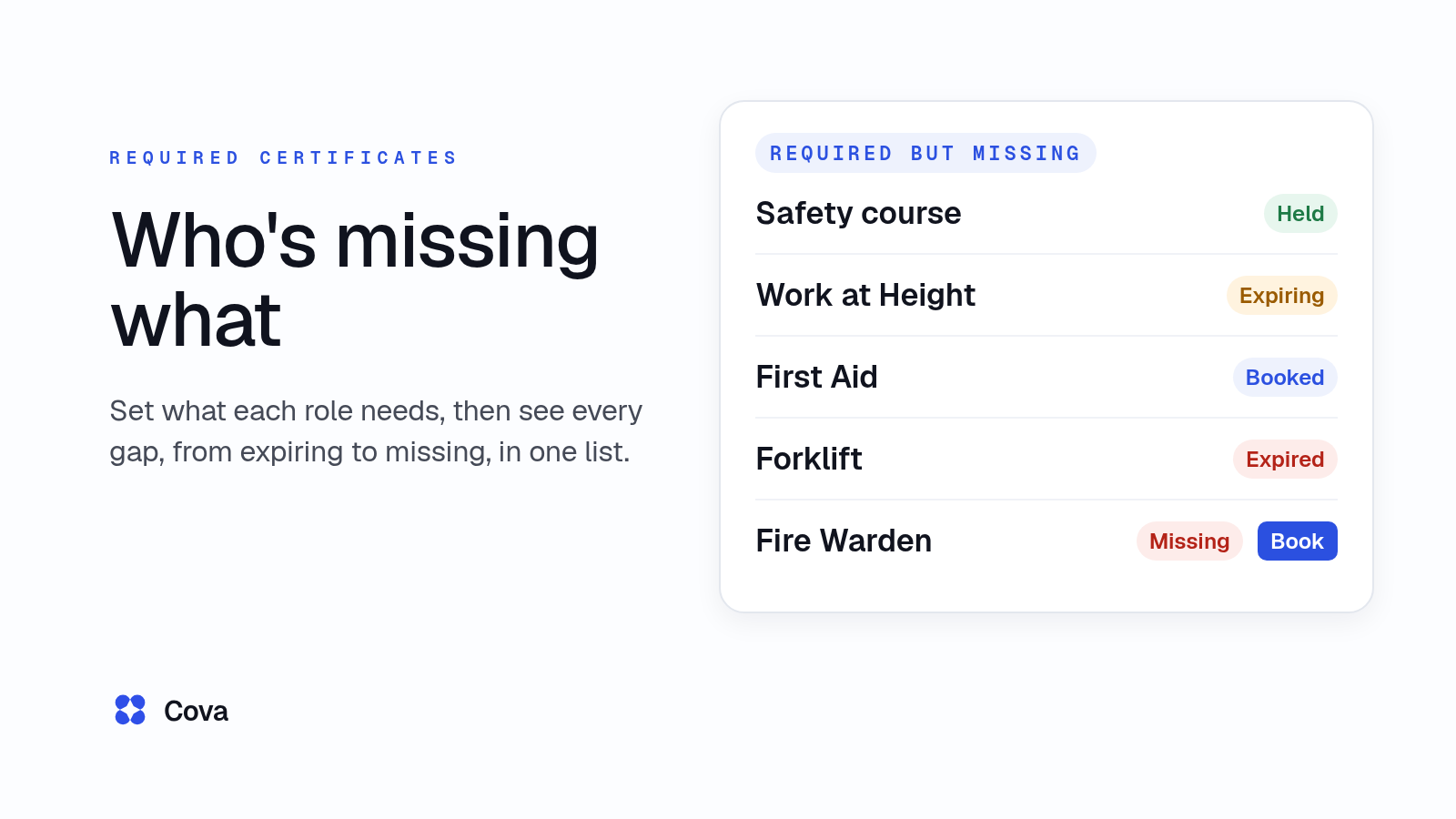
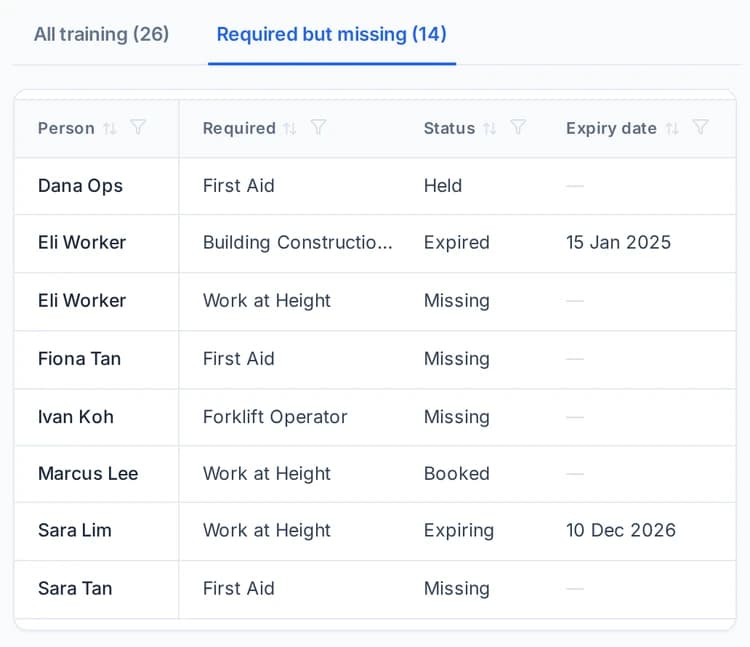
To see who's missing a certificate their role needs, first set the certificates each position requires, then check every person against that list. In Cova, the Required but missing tab lists, for each current employee whose job title is mapped to a position, the mandatory certificates that position needs, and gives each one a status: Held, Expiring (within 90 days), Booked, Expired or Missing.
This guide shows the manual way first, a spreadsheet training matrix, then where it tends to break, and then how Cova's HR system lists the gaps for you.
What a training matrix is
A training matrix is a table with positions down one side and certificate types across the top. Each cell says whether that position needs that certificate: Mandatory, Optional or Not required. Once you have it, you can check each person against their position's row and see what's missing.
The roles in this guide are illustrative examples, not a statement of what the law requires for any job. Some pairings are set by MOM. For example, MOM says migrant workers in the construction industry must complete the Construction Safety Orientation Course (CSOC) or "Apply Workplace Safety and Health in Construction Sites" before their Work Permits can be issued (MOM: construction sector Work Permit requirements). For the other courses, such as supervisor and work-at-height training, check the rules in our construction training records guide before you fill in your own matrix.
The manual way: a spreadsheet training matrix
Set it up
Most teams build it from three tabs:
- Requirements: one row per position, one column per certificate type, with Mandatory, Optional or Not required in each cell.
- People: one row per employee, with their position.
- Certificates: one row per certificate held, with the person, the certificate type and the expiry date.
A fourth tab brings them together: people down the side, certificate types across the top, and a lookup in each cell. It checks whether the person's position needs that certificate, finds their latest one on the Certificates tab, and compares the expiry date with today. Conditional formatting colours the result.
| Employee | Position | Safety course | Work at Height | Forklift |
|---|---|---|---|---|
| Ravi Kumar | Site supervisor | Held | Expiring | Optional |
| Mei Ling Tan | Forklift operator | Held | — | Expired |
| Arjun Das | Lifting supervisor | Missing | Held | — |
| Siti Rahman | Office admin | — | — | — |
A made-up example: the people are invented and the positions are illustrative. A dash means not required. Optional means the role doesn't need it, so it never shows as missing. Leave NRIC, FIN and pass numbers out of the sheet: it gets shared more widely than you expect.
Where it breaks
- New hires aren't added. A joiner who never makes it onto the People tab never shows up as missing anything.
- Role changes don't flow through. Someone moves from general worker to supervisor, the People tab keeps the old position, and their new requirements never appear.
- Renewals aren't typed back in. The old expiry date stays, so the sheet shows Expired for a certificate that was renewed months ago, and people learn to ignore the red cells.
- Each site keeps its own copy. Two supervisors edit two versions, and nobody knows which one is right.
- The sheet doesn't book anything. Seeing "Missing" is the easy part. Someone still has to find a course, book it, and remember that it's booked.
- Formulas break quietly. One pasted column or a renamed certificate, and the lookups return blanks that look like "fine".
How Cova shows who's missing a required certificate
In Cova, the requirements, the people and their certificates live in one place, and the gaps are worked out for you.
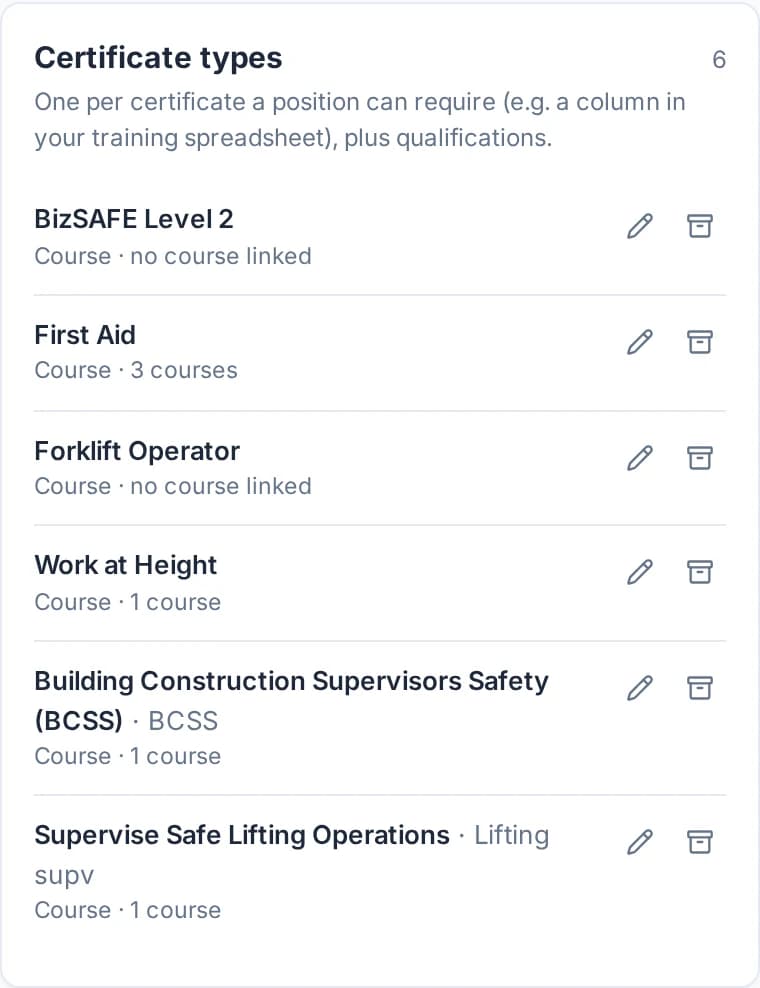
Set certificate types and how long they're valid
HR and Admins manage certificate types, such as Workplace Safety and Health or Work at Height, under Positions & requirements, reached from the Training master list. Each certificate type has a kind (Course or Qualification), how many months it's valid (if set), and the courses that lead to it.
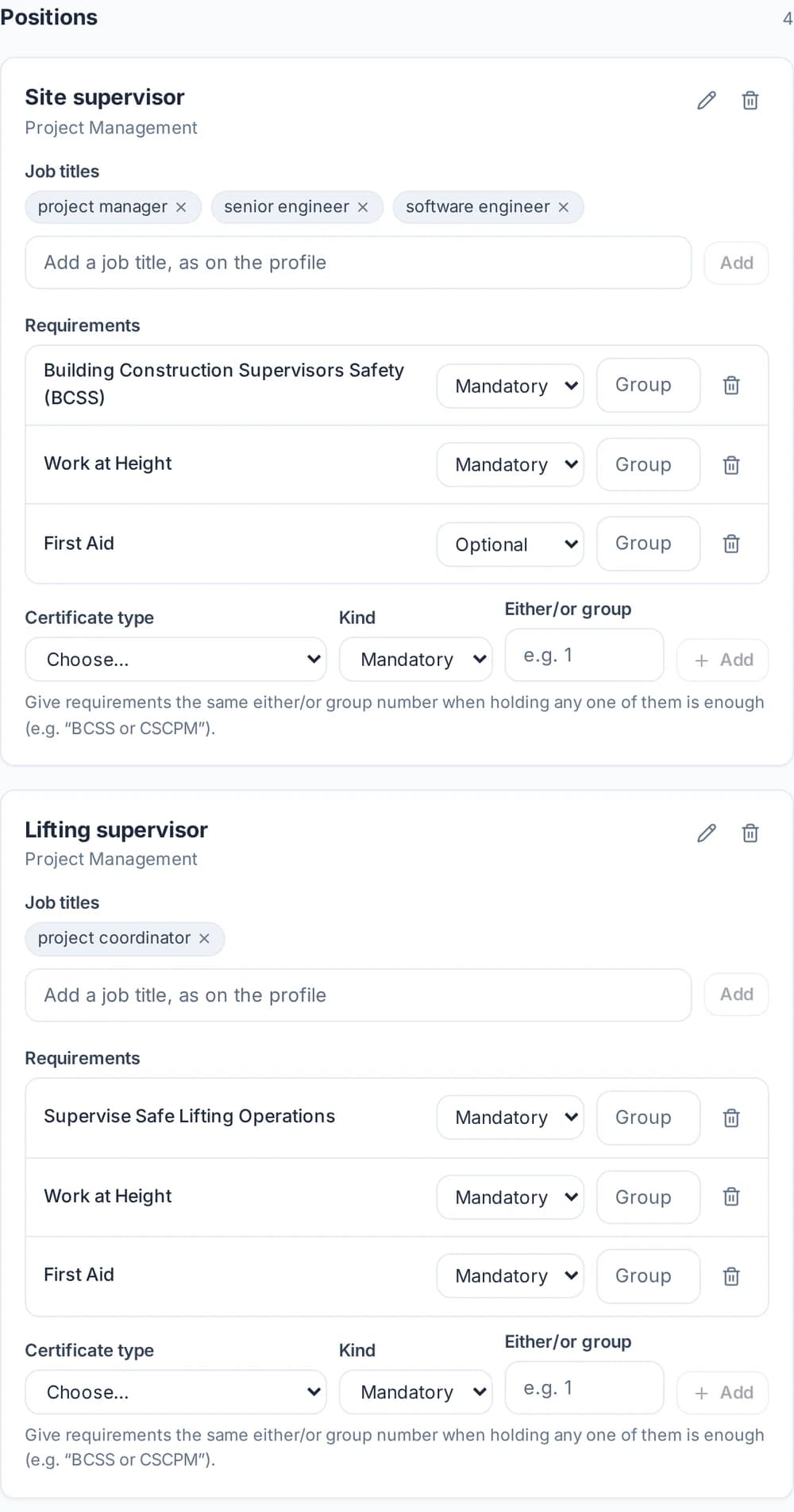
Set each position's requirements
HR sets positions, maps job titles to them, and sets which certificate types each position requires. Positions & requirements is for HR and Admins only.
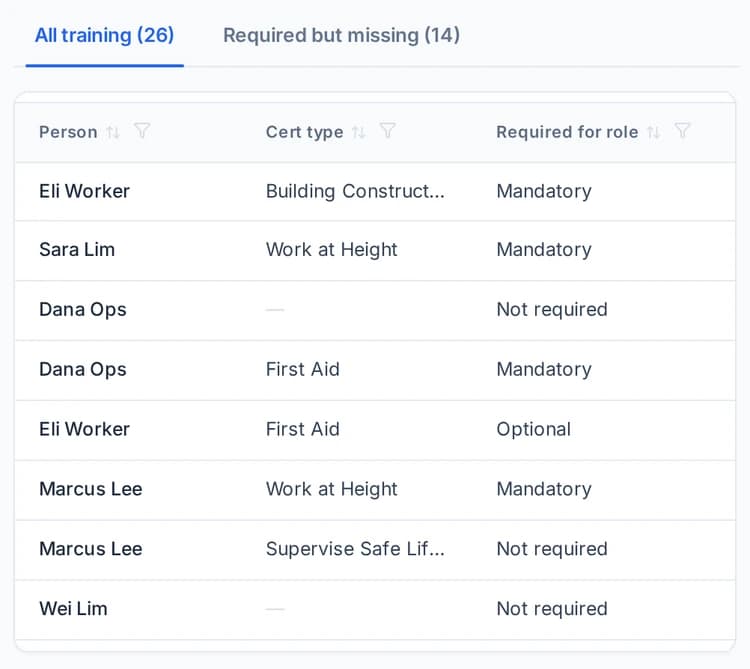
Required for role on every row of the Training master list
Every row of the Training master list shows Required for role: Mandatory, Optional or Not required (or either/or) for the person's position. So when you look at anyone's certificates, you can see straight away which ones their job depends on.
The Required but missing tab
The Required but missing tab lists, for each current employee whose job title is mapped to a position, the mandatory certificates that position needs. Tick Show held to include the ones they already hold. Each has a status: Held, Expiring (within 90 days), Booked, Expired or Missing. A manager sees only their direct reports and their own rows.
Rows that aren't Held show a Book link when an active course is linked to that certificate type, and No course otherwise. A booking or request for that course counts as Booked when there's no valid certificate, so a gap that's already being fixed doesn't look the same as one nobody has touched. You can download what's shown as CSV.
See how training records fit with the rest of your people data on the Cova HRMS page.
Keep it current without chasing
The manual way: someone has to type every new certificate and renewal date into the Certificates tab, or the matrix goes stale.
In Cova: after a course booked through Cova, the employee uploads their certificate under My training. Once HR has set up certificate types, they pick the Certificate type, then enter the Issue date and Expiry date printed on it, or tick No expiry. Employees can also add a certificate earned elsewhere on their profile under Documents & certificates, and HR can add one with Add certificate on the Training master list. That's what the Required but missing tab checks against.
Expiry is covered too. By default, HR and the direct manager are emailed at 90, 60 and 30 days before, on the day, and 7 days after. Want those emails on other days, or sent to the employee as well? Yes, we build and set this up for your team. Our guide to expiry reminders covers how they work.
Need a worksite view?
Want to pick a worksite's required certificates and see who holds all of them? Yes, we build and set this up for your team.
What's available for your team depends on the modules you choose.
What you remove
- No training matrix to rebuild when someone joins or changes role. Once their job title is mapped to a position, their gaps show up.
- No lookups that break when a column moves.
- No separate list of who's already booked.
- No guessing which red cell is real.
For the wider picture, from SkillsFuture funding to approvals, see our guide to training management for SMEs.
HRIS buyer's checklist for Singapore SMEsWhat to check before you buy an HR system in Singapore, from leave and approvals to training records.cova.sg/resources/sg-hris-buyers-checklistFrequently asked questions
What is a training matrix?
A table with positions down one side and certificate types across the top, saying whether each position needs each certificate: Mandatory, Optional or Not required. You then check each person against their position's row to see what's missing or about to expire. Many teams keep one in a spreadsheet.
How do I check who's missing mandatory training?
Set the certificates each position needs, then compare each person's certificates against that list. In Cova, the Required but missing tab lists, for each current employee whose job title is mapped to a position, the mandatory certificates that position needs, each marked Held, Expiring (within 90 days), Booked, Expired or Missing.
What happens when a required certificate is about to expire?
On the Required but missing tab, it shows as Expiring once it's within 90 days of its expiry date. By default, HR and the direct manager are also emailed at 90, 60 and 30 days before, on the day, and 7 days after. Want different timing? Yes, we build and set this up for your team.
Can I book the missing course from the same screen?
Yes, where an active course is linked to that certificate type. Rows that aren't Held show a Book link, or No course if none is linked. A booking or request for that course counts as Booked while there's no valid certificate. You can also download what's shown as CSV.
Can Excel track mandatory training?
Yes, with a requirements tab, a people tab, a certificates tab and lookups that compare expiry dates with today. It works while one careful person keeps it updated. It doesn't add new hires, follow role changes or book courses by itself, so gaps creep in as the team grows.
Can I see who's cleared for a particular worksite?
Want to pick a worksite's required certificates and see who holds all of them? Yes, we build and set this up for your team. Requirements are set by position, and the Required but missing tab shows each person's gaps against their position.
This guide is general information, not legal advice. The MOM rule cited was checked on MOM's website on 26 October 2026. Always check the linked pages for the latest position.