Onboarding checklists by pass type: EP, S Pass, Work Permit
Run a separate onboarding checklist for EP, S Pass, Work Permit and local hires, with owners, due dates and reminders, and one list of every new joiner.
By Cova
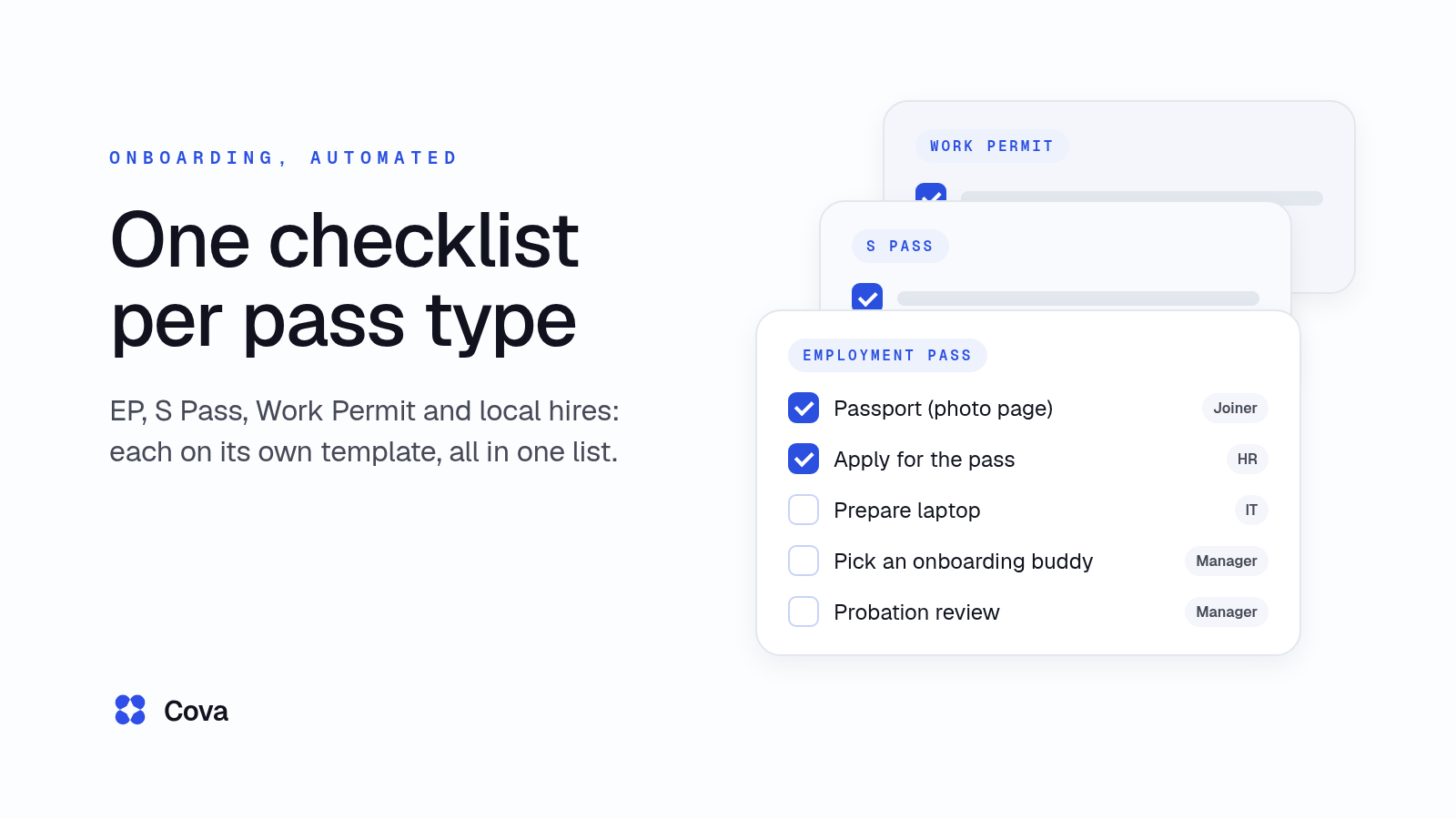
Many Singapore SMEs onboard a mix of people: Singapore Citizens and PRs, Employment Pass (EP) holders, S Pass holders and Work Permit holders. Each one needs different documents and different steps. Yet many teams run all of them from one spreadsheet, plus a WhatsApp thread to chase whoever is late.
This guide shows how to set up one onboarding checklist per pass type and have it run itself. For each part, you'll see the manual way first and then how Cova's HR system automates it, using screens from Cova's demo workspace. Every name in them is made up.
Why one checklist for everyone breaks
A single onboarding sheet looks simple until your second Work Permit hire. MOM sets out different requirements for each pass. The S Pass and Work Permit each come with their own quota and levy rules, and the Employment Pass has its own eligibility criteria and documents. A local hire needs none of the pass steps.
The manual way: one long spreadsheet with every possible step, and a column where someone types "N/A" for the rows that don't apply. Nobody owns the rows, due dates live in someone's head, and documents arrive as WhatsApp photos that someone has to save and file. When a joiner's manager asks "is she ready for Monday?", HR has to go and find out.
The automated way: a separate template for each pass type, where every step has an owner and a due date, and steps that don't apply drop out on their own.
Build one template per pass type
The manual way: copy last month's sheet, delete the rows that don't fit, and hope nothing important went with them.
In Cova: you build each checklist once as a template, in the template builder under Onboarding > Templates. Every Cova workspace starts with five ready-made templates you can edit: SC/PR, Work Permit, S Pass / EP, Malaysia and a general offboarding template.
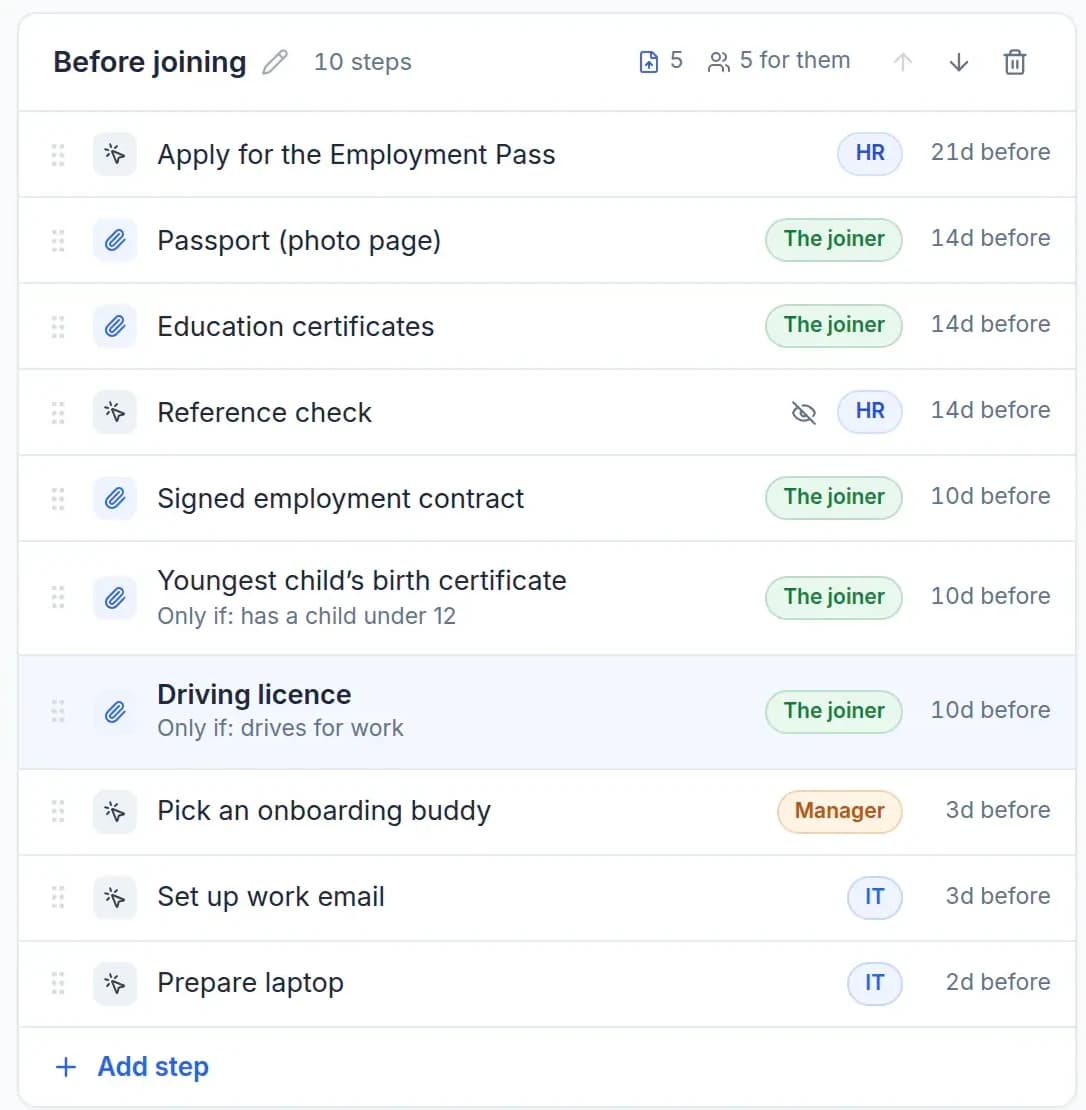
The screen above shows the Before joining section of the Employment Pass template. Here's how a template is put together:
- Sections by time. Steps are grouped into sections, starting with Before joining, Day 1, First weeks and Probation.
- Two kinds of step. An Upload step asks for a file or photo, such as a passport photo page. A Confirm step is one someone marks done, with an optional note, such as "Apply for the Employment Pass".
- An owner for every step. Each step says who does it: the joiner, their manager, HR, IT or Admin.
- Due dates from the join date. Each step is due a set number of days before or after the join date, so "Apply for the Employment Pass" can be due 21 days before joining and "Probation review" 85 days after.
When you publish changes, journeys already running keep their steps and due dates. Steps you add or remove only affect new journeys.
Make steps apply only when they should
The manual way: one template per combination (EP with a car, EP with children, EP with both), or one template where HR remembers which rows to skip.
In Cova: a step can carry a condition. In the screen above, Driving licence shows Only if: drives for work, and Youngest child's birth certificate shows Only if: has a child under 12. A step can apply if any of several conditions is true; you add more with + Or also….
When you start a joiner's onboarding, Cova answers most of these conditions from the person's profile, so you only fill in what the profile is missing. Steps whose conditions are false are marked Not needed, and only HR and Admins see skipped steps.
Some steps are for the team's eyes only. A crossed-out eye means a step, like Reference check, is hidden from the joiner. Only HR and the joiner's managers see it.
Starting is quick too. On the Onboarding page, select Start onboarding, pick who's joining and check the join date. Cova pre-selects a template marked Suggested from the person's employment type, and you can pick a different checklist if you need to. In each template's settings, Suggest it for lists the employment types it's for, so an Employment Pass hire starts on the Employment Pass checklist without HR having to remember. See how onboarding fits with the rest of the employee lifecycle on the Cova HRMS page.
Let the joiner do their part from their phone
The manual way: "Please send me your passport, degree and signed contract." Photos arrive over a week, in three chats, and someone saves them to a shared drive with a name nobody can find later.
In Cova: the joiner does their own steps on their phone, with Take photo or Upload on each document step. Before you publish a template, select What they see to preview the joiner's steps as they'll appear on a phone.
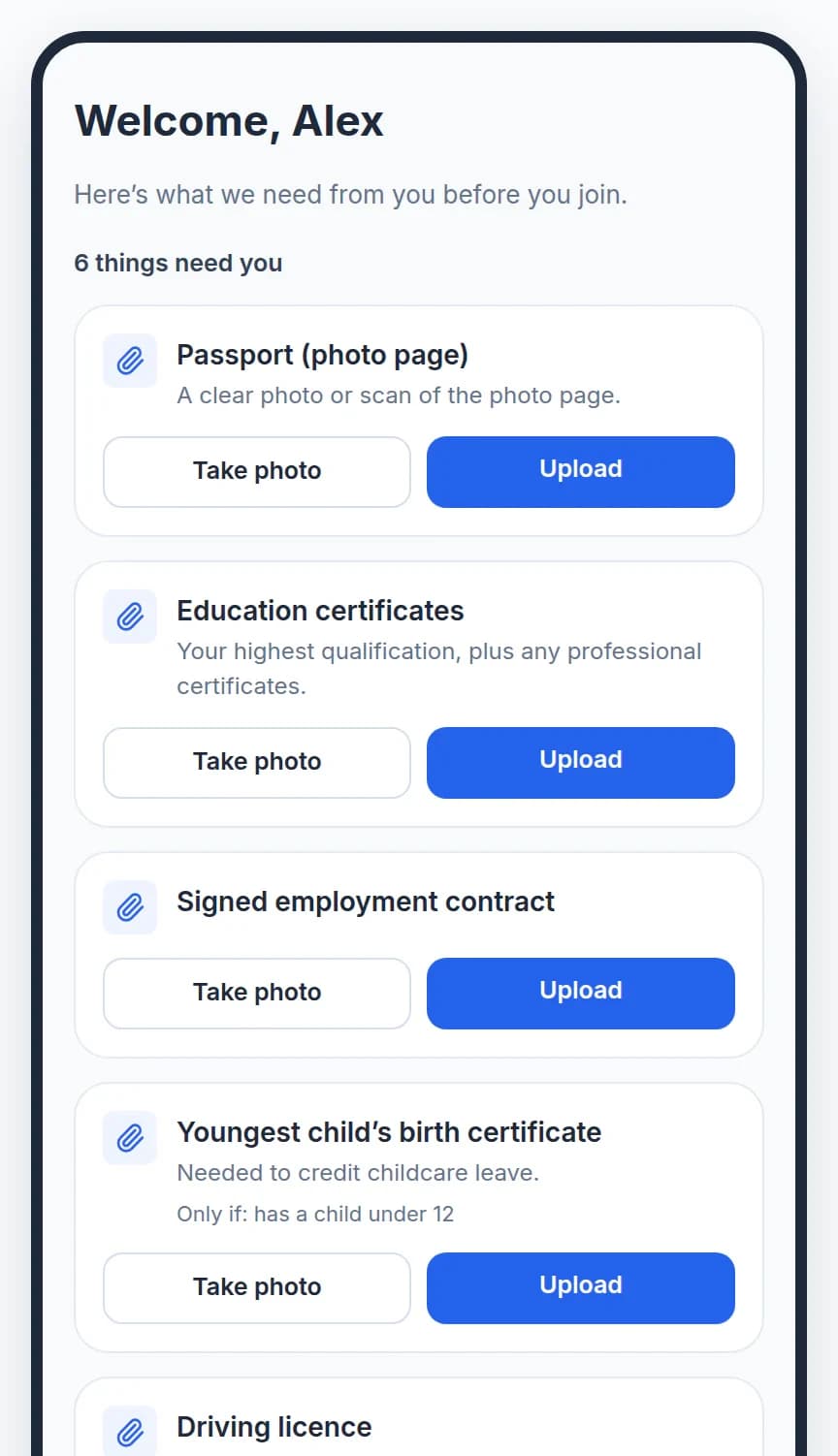
What the joiner submits is saved on their profile, filed by the document type set on the step. IDs and passes go to their identification and work pass records, and everything else to documents and certificates.
There's no need to ask twice for something you already hold. A passport or work pass step closes itself as Already on your profile when the profile already has a current one of that type. An expired document never counts.
The joiner needs a Cova login to do their steps. You can start their onboarding before they have one. Cova warns you, and they do their steps once you invite them.
Chase less
The manual way: a Monday reminder to IT about the laptop, a message to the manager about the buddy, and three "gentle reminders" to the joiner about their certificates.
In Cova: Each team step can email its owner a reminder at 9 am on the due date, or every day from then until it's done (up to 14 days). So IT hears about the laptop and the manager about the buddy without HR sending a word.
For the joiner's own steps, HR presses Remind. That sends the joiner one email listing all their open steps, instead of a separate nudge for each document. HR can't tick off the joiner's steps for them. But if HR adds a current passport, NRIC, work pass, driving licence or education record to the joiner's profile, the matching step closes. Other documents, such as certificates or a signed contract, stay with the joiner.
For more on keeping approvals and chasing out of chat, see our guide to approval workflows for SMEs.
See every joiner in one table
The manual way: the spreadsheet is the status report, so it's only as current as the last person who updated it.
In Cova: the Onboarding Master List is one table of every journey, with a row per joiner and a column per step. It fills itself in as people do their steps.
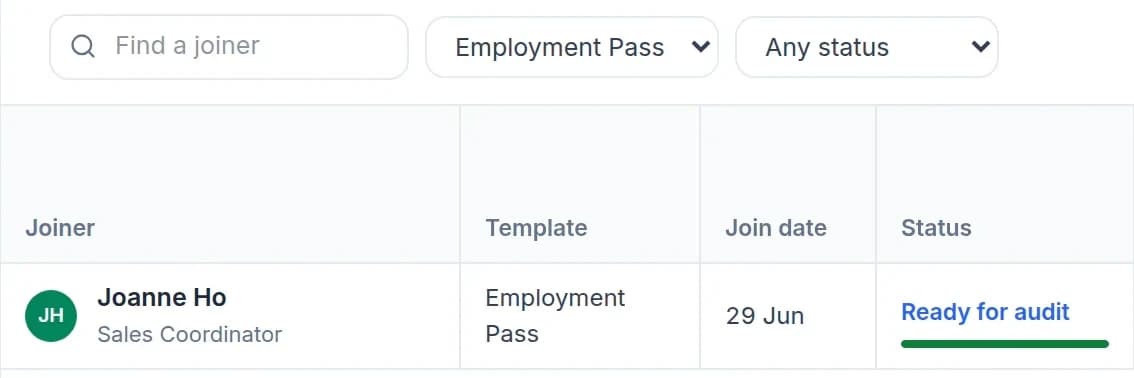
- Filter by template and status, for example every Employment Pass joiner who is ready for audit.
- Upload cells open the document; other cells show the note, or the date the step was done.
- HR and Admins can mark team steps done or Not applicable, with a reason, right in the table.
- Managers can open the Master List too, and see only their own team's joiners.
- Export CSV downloads the rows you've filtered to.
Onboarding and the Master List depend on the modules you choose. Ask us what fits your team.
HR can also follow onboarding from a phone. The Onboarding page shows who's joining with no onboarding started yet, what's in progress, what's ready for audit and what's been audited.

You can see these screens in context on the Cova HRMS page.
Close it properly with an audit
The manual way: onboarding just fades out. Nobody checks the last documents, and the sheet keeps a half-finished row forever.
In Cova: when every step is done or not needed, the journey moves to Ready for audit. HR selects Start audit, and Cova lists only the steps with something to check: uploaded files and notes. For each one, HR looks at it and selects Looks good or Send back with what to fix.
- A step that's sent back goes to its owner with HR's comment, due again in 3 days, and its owner is emailed.
- Complete audit locks the journey and stamps the Master List row Audited.
Need something on top, such as a welcome message to the whole team when a journey is audited? Yes, we build and set this up for your team.
What you remove
Put together, these are the steps that go:
- No copying and trimming a spreadsheet for each new hire.
- No WhatsApp photos to save and rename.
- No asking a joiner for a passport you already hold.
- No manual due-date reminders to IT and managers, for steps with a Reminder email.
- No guessing where each joiner is up to.
If you're also tracking pass and certificate expiry after people start, our work pass expiry guide covers that side.
HRIS buyer's checklist for Singapore SMEsWhat to check before you buy an HR system in Singapore, from leave and approvals to training records.cova.sg/resources/sg-hris-buyers-checklistFrequently asked questions
Do I need a separate onboarding checklist for each pass type?
It helps. Each pass comes with different documents and steps, so one template per pass type keeps every checklist short and relevant. In Cova, steps can also carry conditions, such as drives for work, so you don't need a template for every combination.
Can I start onboarding before the joiner has a Cova login?
Yes. HR can start the journey first. Cova warns you that the joiner has no login yet, and they do their own steps once you invite them.
What happens to running journeys when I change a template?
Journeys already running keep their steps and due dates. Steps you add or remove only affect journeys started after you publish. On a running journey you can mark a step that no longer applies as Not applicable.
Can managers see their new joiners?
Yes. A joiner's managers can see the journey, and in the Onboarding Master List managers see only their own team's joiners.
How much does onboarding in Cova cost?
Ask the Cova team for a quote for your headcount and the modules you need.